Table of Contents
- Where Is the EarPods Control Button?
- Apple EarPods Button Shortcuts at a Glance
- 1. Play or Pause Music with One Press
- 2. Skip to the Next Song with Two Presses
- 3. Go Back with Three Quick Presses
- 4. Fast-Forward: Double-Press and Hold
- 5. Rewind: Triple-Press and Hold
- 6. Ask Siri Without Picking Up Your Phone
- 7. Answer and End Calls with One Button
- 8. Adjust Volume with + and –
- 9. Use Your Remote Without Looking at Your iPhone
- Do These Shortcuts Work with USB-C, Lightning, and 3.5 mm EarPods?
- Why Is My EarPods Button Not Working?
- EarPods vs. AirPods: Do They Use the Same Shortcuts?
- Frequently Asked Questions
- Sources and Further Reading
That little button on your wired iPhone earbuds does more than pause music. With a quick double-press, triple-press, or a press-and-hold, Apple EarPods can skip tracks, answer calls, and open Siri without taking your phone out of your pocket. Here is what each shortcut does—and which popular tricks may not work in every app.
- Use with: Apple EarPods with an inline remote and compatible iPhone
- Center button: Play/pause, track controls, phone calls, Siri
- Plus and minus: Adjust volume
- Important: Presses must be quick for double- and triple-click shortcuts
- Compatibility: Some actions vary by app, connector, and device
Where Is the EarPods Control Button?
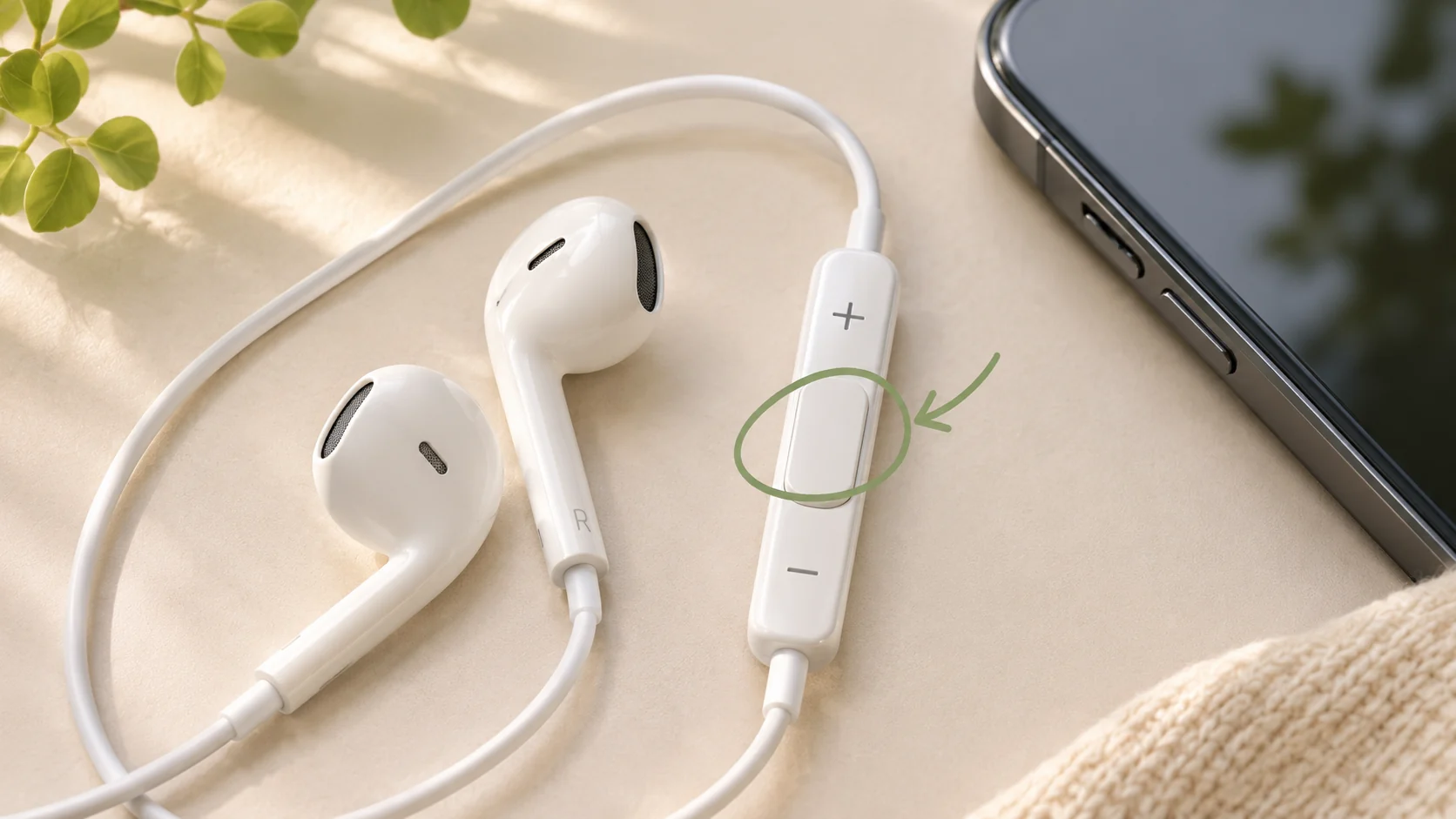
Look along the cable leading toward the right earbud. The slim inline remote has three control areas: a + button at one end, a center button, and a – button at the other end.
The center button is the one used for most music and call shortcuts. You do not need to touch the phone screen, and basic playback controls can work even when the iPhone is locked. Apple’s instructions specifically document these functions for EarPods. The exact behavior in a third-party audio app can vary.
Apple EarPods Button Shortcuts at a Glance
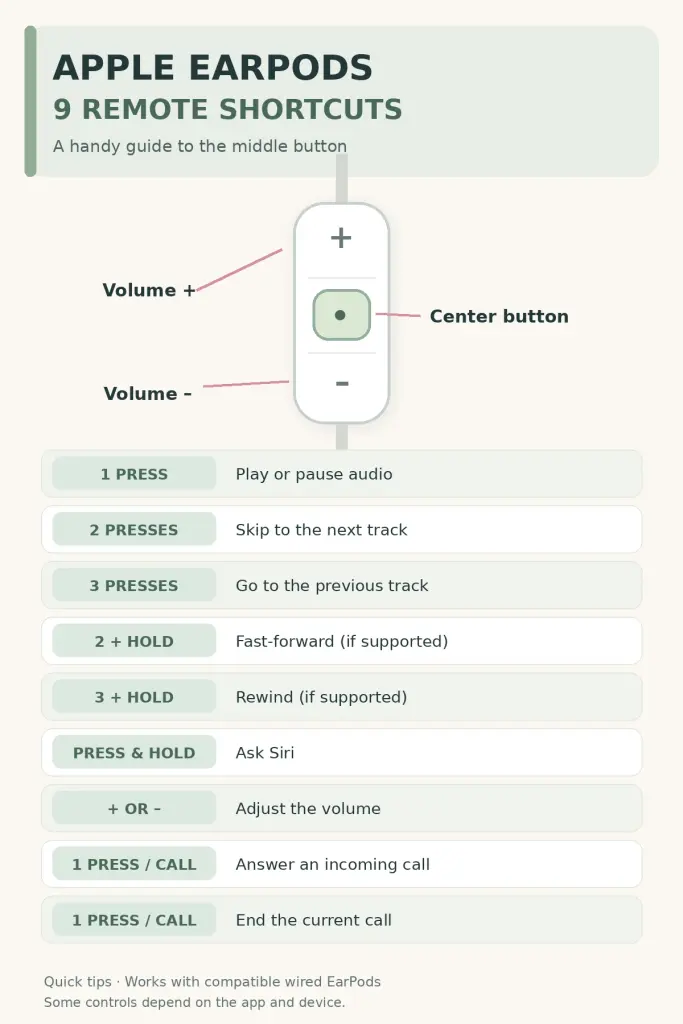
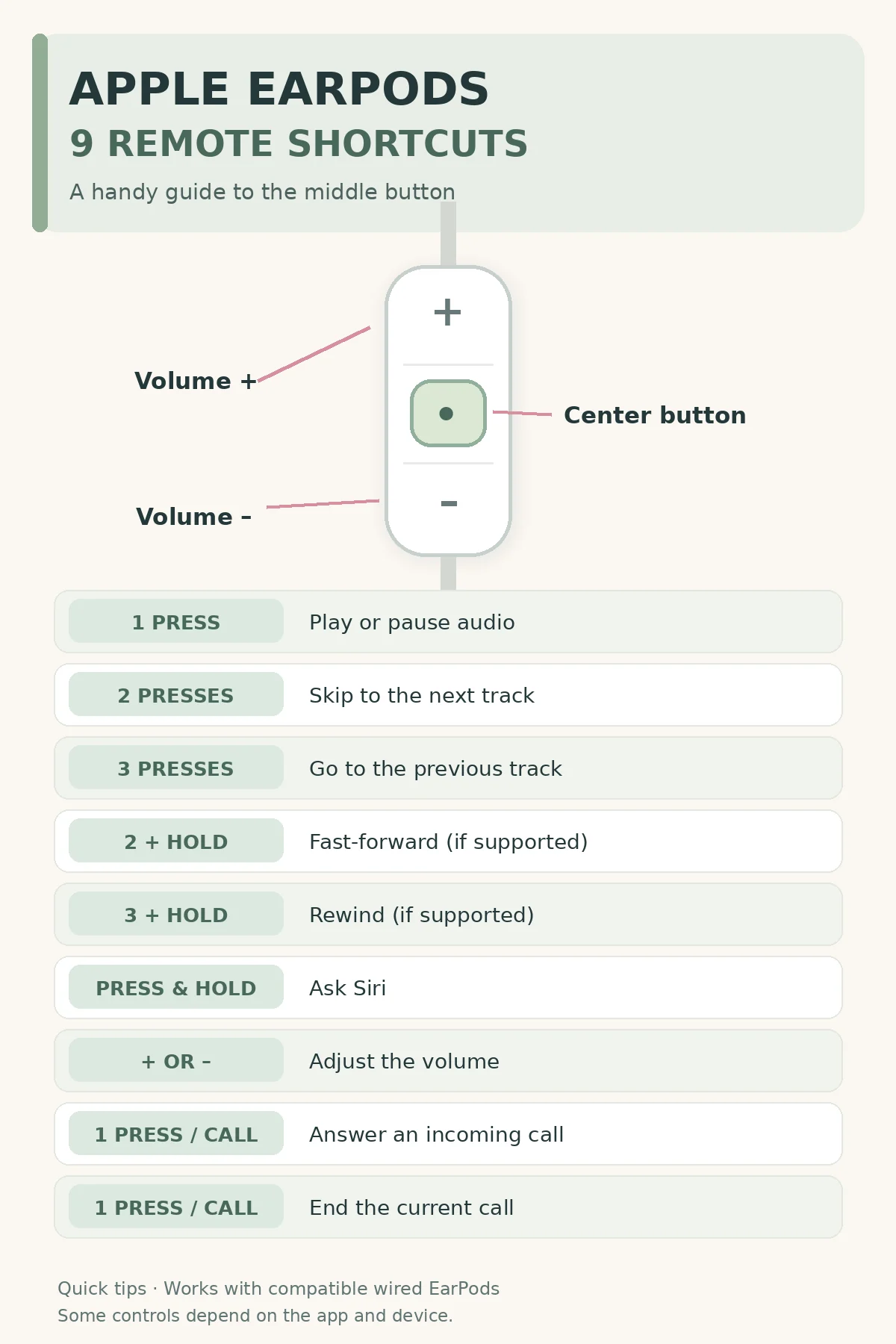
| What You Want | Button Action | What Happens |
|---|---|---|
| Play or pause | Press center once | Starts or pauses compatible audio |
| Next song | Press center twice quickly | Skips to the next track |
| Previous song | Press center three times quickly | Goes back to the previous track or starts it again, depending on the player |
| Fast-forward | Press center twice; hold on the second press | Seeks forward where the app supports it |
| Rewind | Press center three times; hold on the third press | Seeks backward in apps and older setups that support this shortcut |
| Siri | Press and hold center | Invokes Siri when enabled |
| Increase / decrease volume | Press + or – | Adjusts listening volume |
| Answer a call | Press center once | Answers an incoming call |
| End a call | Press center once | Ends the current call |
Correction to the viral image: Fast-forward is two presses, holding the second; rewind is traditionally three presses, holding the third. The graphic’s one-press-and-hold instructions for fast-forward are not accurate for Apple EarPods. Apple’s current guide confirms fast-forward but does not list rewind, so treat rewind as a legacy or app-dependent feature.
1. Play or Pause Music with One Press
Press the center button once to pause a playing song, audiobook, or video in a supported app. Press it again to resume. This is the easiest shortcut to try because it requires no timing and usually works without unlocking your iPhone.
If one press does nothing, first check that the earbuds are connected properly and the audio app actually has something playing.
2. Skip to the Next Song with Two Presses
Press the center button twice in quick succession. Think of it as a double-click, not two separate slow presses. In a music app, this normally moves to the next track. In audiobook or podcast apps, the action may differ.
3. Go Back with Three Quick Presses
Press the center button three times quickly. In compatible music playback, this is the previous-track shortcut. Some apps restart the current song before moving to an earlier song, so do not assume every player will behave exactly the same way.
4. Fast-Forward: Double-Press and Hold
To move forward within a track, press the center button once, then press it a second time and keep holding the second press. Release when you reach the part you want.
Apple documents this action in the current iPhone EarPods guide. However, seeking through audio may not be supported by every streaming service or media player.
5. Rewind: Triple-Press and Hold
Older Apple iPhone guides describe a similar action in reverse: press the center button three times rapidly and hold down on the third press. This can move backward within a playing track on supported older setups.
The current Apple EarPods guide no longer lists that rewind shortcut. If your device does not respond, use the playback progress bar in the audio app instead of assuming the remote is broken.
6. Ask Siri Without Picking Up Your Phone
Press and hold the center button until you hear the Siri sound, then release and speak. You can ask Siri to play a playlist, call someone, or answer a simple question.
Make sure Siri is enabled on your iPhone. This is not the same action as fast-forward: a single long press activates Siri, while fast-forward requires a quick double-press with the second press held.
7. Answer and End Calls with One Button
When your iPhone rings, press the center button once to answer through your EarPods microphone. Press the same button once during the call to hang up.
If a second call arrives, Apple also documents pressing the center button to switch to the incoming call while placing the current one on hold, then pressing again to switch back. Availability depends on calling features and your carrier.
8. Adjust Volume with + and –
Use the dedicated plus and minus buttons on the remote to make audio louder or quieter. Unlike the center button’s track controls, these do not require repeated clicking patterns.
Keep volume at a comfortable level. On a compatible iPhone, you can also visit Settings → Sounds & Haptics → Headphone Safety to find options such as Reduce Loud Audio.
9. Use Your Remote Without Looking at Your iPhone
One of the most helpful tricks is combining the controls while walking or doing chores: press once to pause, twice to skip, and hold for Siri. Because the remote is easy to find by touch, you can manage simple actions without keeping your phone in hand.
Do not use the buttons while handling equipment or doing another task that needs your full attention. And remember that different third-party headsets may use different command patterns.
Do These Shortcuts Work with USB-C, Lightning, and 3.5 mm EarPods?
Apple sells wired EarPods in multiple connector styles. The important first step is choosing a version that physically works with your device.
| EarPods Version | Connector | What to Check |
|---|---|---|
| USB-C EarPods | USB-C | Your phone or device needs a compatible USB-C port |
| Lightning EarPods | Lightning | Works with compatible Lightning devices and supported iOS versions |
| 3.5 mm EarPods | Headphone jack | Use a compatible jack or supported adapter; some adapters may not pass every remote command |
These controls are documented for Apple’s wired EarPods with a remote. A generic pair that looks similar may use different electronics, so results can differ even if it has three inline buttons.
Why Is My EarPods Button Not Working?
Before replacing your headphones, try these checks.
- Reconnect the earbuds. Unplug and firmly reconnect them. Check that your phone case is not blocking the connector.
- Try Apple’s own audio player. Test play/pause and skipping tracks. One app might ignore controls that work elsewhere.
- Check for damage. Look for wear on the cable, connector, and inline remote.
- Inspect for debris. Check the phone port and earbud openings. Use only a gentle, dry cleaning method appropriate for the device.
- Restart and update. Apple recommends installing the latest available iOS version and restarting the device when headphones stop working correctly.
- Compare another pair. If a second compatible pair works, the original headset may need replacing.
Quick diagnosis: If volume works but double-press does not, check whether the audio app supports track skipping. If no button works, inspect the connection and remote before troubleshooting software.
EarPods vs. AirPods: Do They Use the Same Shortcuts?
No. These instructions are for wired Apple EarPods with an inline remote. Wireless AirPods have touch, force-sensor, or button controls that vary by AirPods model. Do not use this chart as an AirPods controls guide.
Frequently Asked Questions
What does the middle button on Apple EarPods do?
It controls play and pause, next and previous tracks, supported seek actions, Siri, and phone calls. The action depends on how many times you press and whether you hold the final press.
How do I skip a song with wired iPhone earbuds?
Press the center button twice quickly. Three quick presses usually move back to an earlier track in a compatible music app.
How do I fast-forward with EarPods?
Press twice quickly and hold the second press. The app must support fast-forward control.
Can I rewind using my EarPods remote?
Older Apple documentation describes pressing three times and holding the third press. The current iPhone guide does not list this function, and support varies.
Can I answer calls using the earbud button?
Yes. Press the center button once to answer an incoming call. Press once during the call to end it.
Why doesn’t the button work in every app?
Third-party apps may handle remote control events differently. Test the remote in a supported iPhone audio app to tell whether the issue is app-specific.
Sources and Further Reading
The core shortcuts and compatibility information were checked using Apple’s Use EarPods with iPhone guide, Apple’s wired headphones guide, and Apple’s headphone troubleshooting guidance.